just volleyball Photo Mode
Open Locker → Photo Studio, frame your avatar, then press F12 to save the view with Steam Overlay enabled. For in-game replay after a point, turn on Instant replay in a custom lobby before the match.
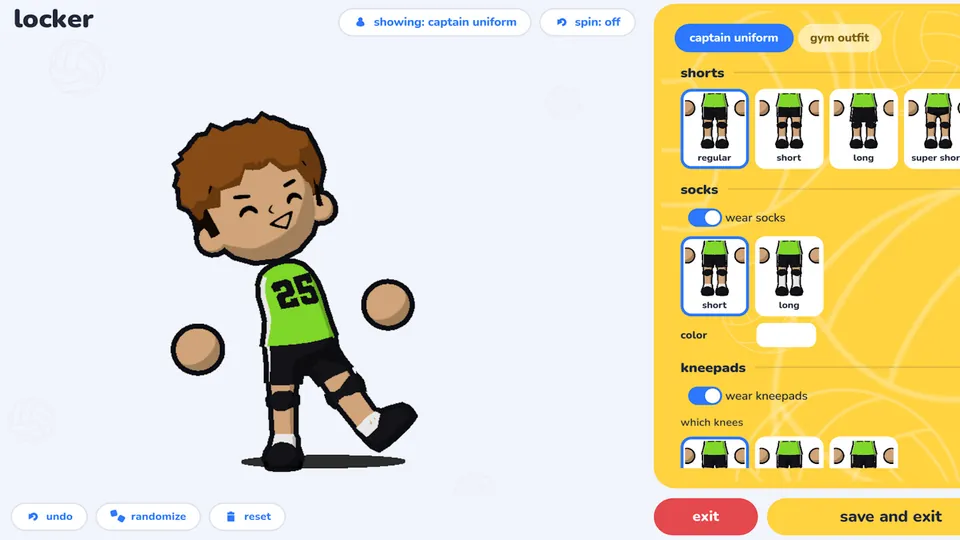
Open Photo Studio from the Locker
- Open Locker and apply the appearance you want to photograph.
- Enter Photo Studio. Choose a pose and background, then use Size, Tilt and Rotate to frame the character.
- With the framing visible and the Steam Overlay enabled, press F12 or your assigned Steam screenshot key. Open the overlay with Shift+Tab on the default binding and check that the shot appears in Screenshots.
This method saves the screen as shown, including any controls that are visible. To share a character preset with its QR code, use Presets → Share → Save Picture.
Watch an instant replay in a custom lobby
- Host a custom lobby.
- In the lobby’s match modifiers, turn on Instant replay, then start the match.
- At the end of a rally, watch for the short replay before play resumes. This is the custom match’s automatic playback after a point.
Keep a replay of a specific match
For a past match, open Profile → Career and find the match in your history. Use the Career filters added in 1.0.4 to narrow the list. The developer added match favorites in 1.0.1 to retain replays, so favorite the match you want to keep. The patch notes document the history, filters and retention. The playback control for a saved match still needs confirmation.
Steam’s store notes that replay files can increase disk usage.
Play or export a Steam recording
Use Steam Game Recording if you want a video you can open again or share. Set it up before the match.
- In Steam, open Settings → Game Recording and choose Record in Background.
- After the match, open View → Recordings & Screenshots in the Steam desktop client. Open your just volleyball recording and use its timeline to play the part you want.
- To save a separate file, select Clip, set the start and end points, then choose Save/Share → Export Video File for an MP4.
This uses Steam’s own recording of your screen. A match listed in Career may predate your Steam recording.