just volleyball Best Settings
For a camera baseline, try Dynamic with a 90° FOV, Dynamic FOV and Auto Zoom enabled. That is one creator's launch-build setup. Keep it only if you can follow the landing marker and find your setter in a bot match.
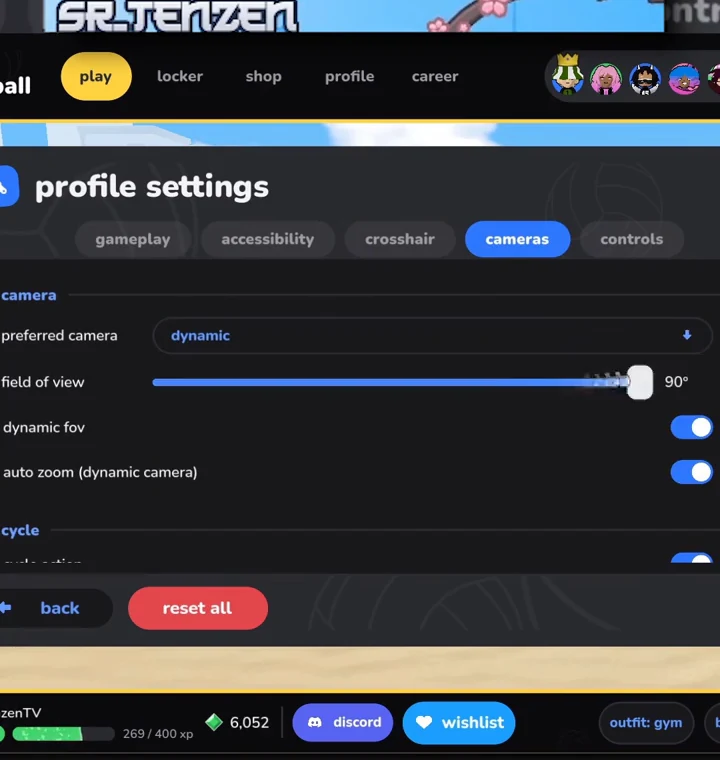
Start with a camera you can follow
Open Profile Settings and go to the camera options. Try these values as a starting point, then compare them against your current setup with the same drill.
| Option | Value shown in the creator’s recording |
|---|---|
| Preferred camera | Dynamic |
| FOV | 90 |
| Dynamic FOV / Auto Zoom | On / On |
| Dynamic camera focus | Center of court |
| Action camera view | Center |
Cycle cameras with C to compare the tracking view with a steadier one. If the view swings away from your target, change auto zoom or camera mode before changing aim sensitivity. Keep the setting with which you can sprint to a short ball and still aim your pass. See the default camera and input controls.
Tune for stutters separately from aim
If the whole match stutters, try a lower resolution and a frame cap your machine can hold in the same bot match. Compare each change against the same camera and court. The developer’s 1.0.4 notes report reduced CPU usage and add a manual monitor selection option. Check that option if the game keeps opening on the wrong display. There is no verified universal best cap or controller sensitivity for this build.
When the game stops launching, follow the startup checklist before changing more settings.